
Mineral Moon: about the project
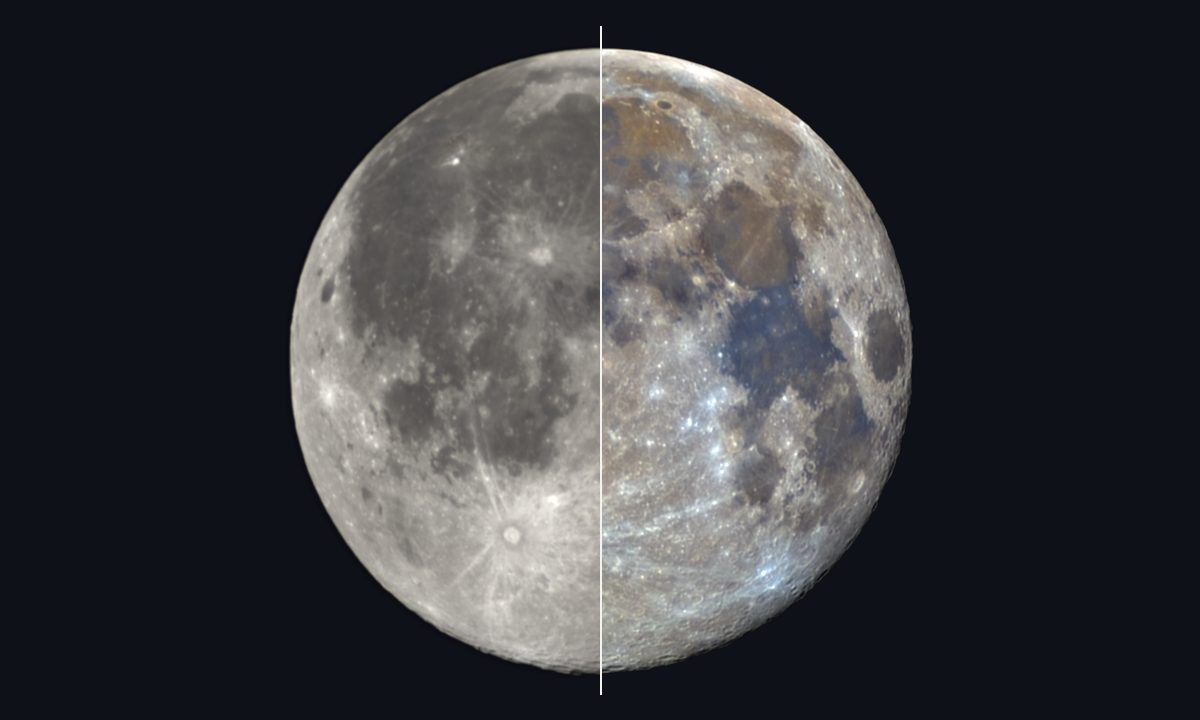
Mineral Moon is a free online tool by Astronocnik that brings out the surface colours in a stacked Moon photo. It runs in the browser at full resolution, and the photo is never uploaded. It was made by Mariusz Staniek from Rzeszow, Poland, who photographs the Moon with a Seestar S50 Pro.
- FreeNo account, no install
- Your photo stays with youRuns in the browser
- Full resolutionNo downscaling
- Nothing pasted inColour only from your data
At a glance
- Price
- Free, no account and no installation
- Author
- Mariusz Staniek, Astronocnik, Rzeszow, Poland
- Input
- A stacked colour photo: FITS, TIFF (8, 16 and 32 bit), PNG, JPEG
- Output
- PNG and 16-bit TIFF at full resolution
- Where it runs
- In the user's browser, the photo is not uploaded
- Languages
- Polish and English
- Devices
- Desktop and phone
- Version
- 1.51, 30 Oct 2026
Why it was made
The author photographs the Moon with a Seestar S50 Pro and wanted to bring out the colours of his own stack without an evening of manual editing. He wanted full resolution, a photo that stays with him, and a calm result that does not look overdone.
The new tool follows four rules: full resolution, the photo stays with the user, default settings give a calm result, and colour comes only from the photo.
What using it looks like
- Load the photoA stacked photo in FITS, TIFF, PNG or JPEG. FITS and 16-bit TIFF straight from stacking hold the most colour.
- Pick a styleNatural, gentle (default), medium or strong. Sliders let you fine-tune the result, but they are optional.
- SavePNG for publishing or 16-bit TIFF for further editing, at full resolution. Optionally with a caption, labels and a poster frame.
What you can do
- See differences in surface composition: bluish areas mean more titanium, orange and purple mean less titanium and iron (simplified).
- Pick 1 of 4 styles and fine-tune with detail, tone and colour sliders and RGB curves with separate channels.
- Label maria and craters with your own labels that you drag with a finger or mouse, and the line follows the text.
- Make a poster in a 1:1, 4:5, 3:2, 16:9 or 9:16 frame, with a caption, place, date and Moon illumination percentage, your own logo and 1 of 13 typefaces.
- Save the result as PNG or 16-bit TIFF.
An honest result
The tool does not add stars, a background or other people's photos. Every colour comes from the photo's data.
The colours are enhanced: differences in lunar rock are faint and invisible to the eye. The result shows what the sensor recorded, not how the Moon looks in an eyepiece.
Every saved file carries an invisible Astronocnik origin mark. It does not change how the photo looks.
Questions and answers
Basics
What is a Mineral Moon?
It is a Moon photo with enhanced colours that show differences in surface composition. Bluer areas are linked to more titanium, and orange and purple areas to less titanium and iron (simplified).
Are the colours in the photo real?
The colour comes from the photo's data and is not painted in. The differences are very faint, so the tool amplifies them. To the naked eye and through an eyepiece the Moon looks grey.
Why does the Moon have different colours?
Different rocks reflect light slightly differently. The dark maria are solidified basalt lava, and their composition, especially titanium and iron content, shifts the hue. The difference is small, so it needs amplifying.
Is this retouching or colourising?
No. The tool paints nothing and adds no elements. It only amplifies colour differences already recorded in the photo. A black and white photo holds no colour, so the result stays grey.
Photo and format
Which photo gives the best result?
A stacked colour photo in FITS or 16-bit TIFF, straight from stacking. JPEG and PNG work too, but 8 bits carry less colour information, so the tool smooths colour more and shows a note about it.
Can I upload a Moon video?
No. The video has to be stacked first, for example in the Seestar app or in AutoStakkert!, and only the result goes into the tool.
Does it work with Seestar photos?
Yes. The tool was built on FITS stacks from a Seestar S50 Pro. It also works with photos from other telescopes and cameras if they are colour, stacked and in a supported format.
How large a photo can I upload?
The limit depends on the device's memory. The tool was tested on 2160 × 3840 px and 2782 × 2782 px photos. The on-screen preview may be scaled down, but the saved file is always full resolution.
How long does processing take?
The preview appears after a few seconds, and moving a slider refreshes it almost instantly. Saving a large 16-bit file can take tens of seconds, depending on the device.
Does it work on a phone?
Yes. On a phone the preview stays pinned to the top of the screen and the sliders scroll beneath it. Processing runs on the phone, so large photos take longer than on a computer.
Editing
Which style should I choose?
There are 4 styles: natural, gentle (default), medium and strong. Gentle gives a calm result straight away, strong amplifies colour the most. Each can be fine-tuned with sliders.
What are the RGB curves for?
The brightness curve and separate R, G and B channel curves shift contrast and colour balance. A point is added by clicking the curve and removed by double-clicking it.
How do I label maria and craters?
The user adds labels: a point, a line or plain text. The text is dragged with a finger or mouse and the line follows. There is no ready-made list of names.
How do I make a poster with a caption?
In the Frame section choose custom proportions (1:1, 4:5, 3:2, 16:9 or 9:16) and the Moon size. The caption has 3 lines: text, place and object. The object line fills itself with the date and illumination percentage if the FITS file holds an observation date, e.g. "Moon 99.6%, 26.10.2026". There is a logo, 6 caption positions and 13 typefaces with Polish characters.
Saving and privacy
Is my photo uploaded to a server?
No. All processing happens in the browser, on the user's device. The photo does not reach Astronocnik's server or anywhere else.
What is stored in the browser?
Only settings: language, frame, caption and logo, so they do not have to be typed again. The tool creates no account and sets no cookies of its own.
Which format should I save?
PNG suits publishing and sharing. 16-bit TIFF keeps more information and is better for further editing in another program.
What is the origin mark in the file?
Every saved file carries an Astronocnik mark invisible to the eye. It does not change how the photo looks and does not get in the way of publishing. It lets the file's origin be confirmed.
The project
Is the tool free?
Yes. It is free to use, with no account and no installation.
Who made the tool?
Mariusz Staniek of Astronocnik, an astrophotographer from Rzeszow, Poland. He designs Seestar accessories, hosts an astrophotography podcast and builds tools for his own photos first, then shares them.
How do I report a bug or an idea?
Through Astronocnik's contact page or by replying to the newsletter. A description of the problem, the browser name and the photo format help.
Glossary
- Stacking
- Combining many video frames or photos into one to reduce noise and bring out detail.
- FITS
- A file format for astronomical images. It keeps full brightness and colour information, and its header can hold the observation date.
- 16-bit TIFF
- A lossless format with 65,536 brightness levels per channel, convenient for further editing.
- Mineral Moon
- A Moon photo with enhanced colours that show differences in rock composition.
- Lunar sea (mare, plural maria)
- A dark, wide area of solidified basalt lava on the Moon's surface.
- Moon illumination
- The percentage of the Earth-facing disc lit by the Sun. At full Moon it is about 100%.
Updated 28 Oct 2026